Introduction
In today’s data-driven business landscape, organizations generate vast amounts of data across sales, inventory, finance, and operations, but the real challenge lies not in collecting data, but in transforming it into meaningful insights that drive informed decision-making. Many businesses rely on static reports or disconnected tools, which often result in delayed insights, poor visibility, and reactive decision-making rather than proactive strategy.
ERPNext addresses this challenge by providing a powerful and flexible dashboard system that enables businesses to visualize real-time data, track key performance indicators (KPIs), and gain actionable insights from a single unified interface. Unlike traditional reporting systems, ERPNext dashboards are dynamic, customizable, and deeply integrated with all business modules, ensuring that decision-makers always have access to accurate and up-to-date information.
This guide provides a complete, implementation-focused approach to building custom dashboards in ERPNext, covering everything from setup and configuration to advanced customization and performance optimization.
1. Understanding Dashboards in ERPNext
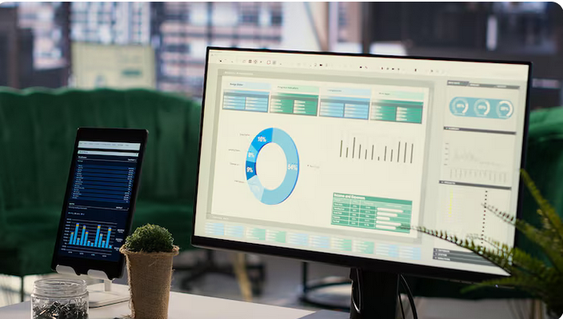
Dashboards in ERPNext serve as centralized visual interfaces that aggregate data from multiple modules such as Sales, Accounts, Inventory, and Projects, enabling users to monitor business performance in real time. Unlike static reports, dashboards provide interactive visualizations including charts, number cards, and summary metrics that update dynamically as data changes within the system.
The key advantage of ERPNext dashboards lies in their ability to connect data across workflows. For example, sales data can be directly linked with payment status, inventory levels, and customer activity, providing a holistic view of business operations without requiring manual data consolidation. This integration eliminates data silos and ensures consistency across all departments.
Additionally, dashboards can be customized based on user roles, allowing executives, managers, and operational staff to view data relevant to their responsibilities. This ensures that each user interacts with meaningful insights rather than overwhelming datasets.
2. Business Challenges Solved by Custom Dashboards
| Challenge | ERPNext Capability | Impact |
|---|---|---|
| Scattered data | Unified dashboard view | Centralized insights |
| Delayed reports | Real-time updates | Faster decisions |
| Lack of clarity | Visual analytics | Better understanding |
| Manual tracking | Automated metrics | Increased efficiency |
Custom dashboards transform business operations by shifting from reactive reporting to proactive decision-making, enabling organizations to respond quickly to changes and opportunities.
3. Step-by-Step Dashboard Creation Process
Building a custom dashboard in ERPNext involves a structured approach to ensure accuracy, usability, and scalability.
Step 1: Create a New Dashboard
Navigate to the Dashboard module and create a new dashboard by defining its name, purpose, and associated modules. This forms the foundation for organizing all visual components.
Step 2: Add Charts and Visualizations
ERPNext supports multiple chart types including bar charts, line graphs, and pie charts, allowing users to represent data in the most meaningful way. Charts can be linked to reports or custom queries, ensuring flexibility in data visualization.
Step 3: Configure Data Sources
Data can be pulled from standard reports, custom reports, or SQL queries. This ensures that dashboards reflect accurate and relevant information tailored to business needs.
Step 4: Add KPI Number Cards
Number cards display key metrics such as total sales, outstanding invoices, or profit margins, providing quick insights at a glance without requiring detailed analysis.
Step 5: Apply Filters and Interactivity
Filters such as date range, company, or department can be added to allow dynamic data exploration, enabling users to analyze trends and patterns effectively.
Step 6: Enable Real-Time Updates
Auto-refresh features ensure that dashboards always display the latest data, making them reliable tools for real-time decision-making.
4. Advanced Dashboard Customization
For developers, ERPNext provides powerful customization capabilities through the Frappe Framework, enabling the creation of highly dynamic and intelligent dashboards.
Advanced techniques include:
- Creating Script Reports using Python and SQL
- Fetching data via APIs for external integrations
- Building custom KPIs using server-side logic
- Enhancing UI with client scripts
- Automating dashboard updates based on events
Example:
frappe.db.sql("""
SELECT customer, SUM(grand_total) as revenue
FROM `tabSales Invoice`
GROUP BY customer
""")
This allows businesses to go beyond standard reporting and create dashboards tailored to their exact operational requirements.
5. Real-Time Business Impact of Dashboards
Implementing custom dashboards in ERPNext delivers measurable business benefits:
- Faster decision-making with real-time insights
- Improved operational efficiency
- Early identification of issues (cash flow, stock shortages)
- Enhanced team productivity
- Increased profitability through better data visibility
Dashboards empower organizations to move from intuition-based decisions to data-driven strategies, significantly improving overall performance.
6. Practical Dashboard Use Cases
Custom dashboards can be designed for different business functions:
Sales Dashboard
- Monthly revenue trends
- Top customers
- Sales pipeline status
Inventory Dashboard
- Stock levels
- Low stock alerts
- Warehouse performance
Finance Dashboard
- Profit and loss summary
- Outstanding payments
- Expense tracking
Project Dashboard
- Task progress
- Deadlines
- Resource utilization
Each dashboard provides targeted insights that align with specific business objectives.
7. Performance Optimization for Dashboards
As data volume grows, dashboard performance becomes critical. Best practices include:
- Optimizing SQL queries
- Using indexed fields
- Limiting unnecessary data loading
- Scheduling background jobs for heavy processing
- Regular system maintenance
These techniques ensure that dashboards remain fast, responsive, and scalable even in large implementations.
8. Common Challenges and Solutions
| Challenge | Solution | Result |
|---|---|---|
| Too much data | Focus on key KPIs | Clear insights |
| Slow performance | Optimize queries | Faster dashboards |
| Poor design | Use simple visuals | Better usability |
| Data inconsistency | Validate sources | Accurate reports |
9. Best Practices for Effective Dashboards
- Keep dashboards simple and focused
- Use meaningful KPIs only
- Avoid overcrowding with too many charts
- Ensure real-time data accuracy
- Regularly update dashboards based on business needs
A well-designed dashboard is not just informative—it is actionable.
Conclusion
Custom dashboards in ERPNext are powerful tools that transform raw business data into actionable insights, enabling organizations to make faster, smarter, and more strategic decisions. By leveraging the flexibility of ERPNext and the customization capabilities of the Frappe Framework, businesses can build dashboards that align perfectly with their workflows and objectives.
The true value of dashboards lies not just in visualization, but in their ability to drive performance, improve efficiency, and support long-term growth. With the right implementation strategy, ERPNext dashboards become a central component of a modern, data-driven enterprise.
Final Thought
For developers and ERP professionals, mastering dashboard creation is a critical skill that demonstrates both technical expertise and business understanding. It is not just about building visuals—it is about delivering insights that matter.