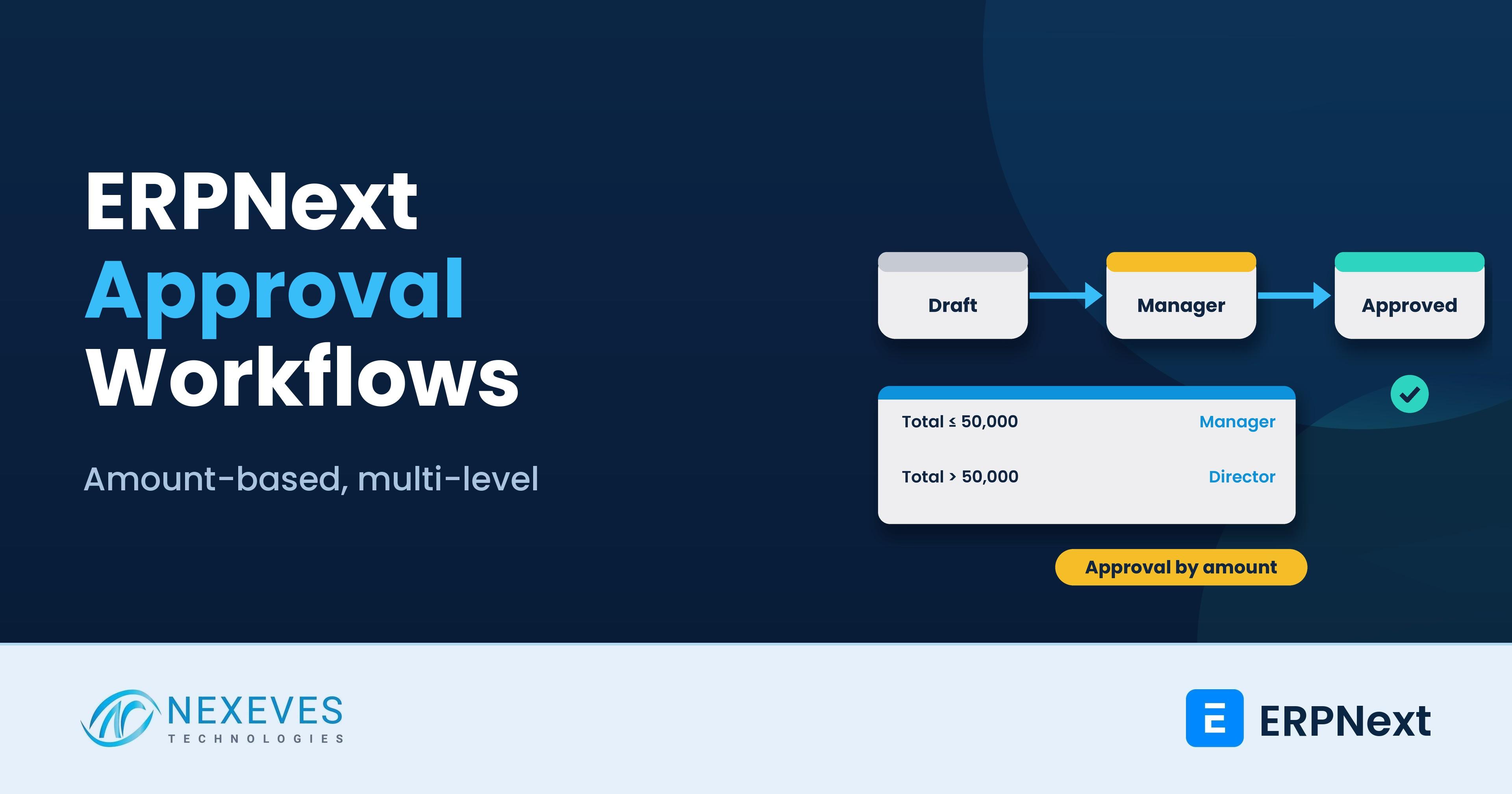
In most growing companies, the owner used to approve every purchase by signing a paper. Then the company added branches, buyers and accountants, and the signature became a WhatsApp message that nobody can audit. An approval workflow brings the control back into the system: a buyer drafts a purchase order, a manager approves up to a limit, a director approves anything larger, and the record shows who approved what, and when.
ERPNext has a built-in workflow engine, and it is more powerful than most users realise. This tutorial builds a real example, a purchase order approval that depends on the amount, step by step. It also covers the conditions syntax, the trap of "Allow Self Approval", the interaction with permissions, notifications, and a testing routine. It follows the official ERPNext workflow documentation.
Workflows only control what role permissions allow, so read advanced user role and permission management alongside this. For a broader overview of customisation features, see custom fields, reports and workflows.
Key takeaways
- A workflow replaces the normal Save and Submit. Once active, a document follows your states and transitions, so you must model Submit and Cancel yourself.
- Conditions use Python expressions on the document, such as
doc.grand_total <= 50000, so approval routes can depend on amount, department, supplier or any field. - Only one workflow is active per DocType. Ticking Is Active turns off the other workflows for that document type.
- Test every path with real users, including rejection, escalation and a user who tries to approve their own document.
Need approvals before money leaves the company?
Tell us who approves what, and at which amounts. We will draft your workflow in a free 30-minute call.
Design my approval flow → WhatsApp us: +91 8089051848
Or email info@nexeves.com
Workflow vocabulary in plain words
| Term | Meaning | Example |
|---|---|---|
| Workflow State | A stage in the life of a document | Draft, Pending Manager Approval, Approved, Rejected |
| Doc Status | The system status behind the state: 0 saved, 1 submitted, 2 cancelled | Approved has doc status 1, so the order is submitted |
| Transition | A move from one state to another through an action, by a role, optionally with a condition | Pending Manager Approval to Approved, action Approve, role Purchase Manager |
| Action | The button label users see | Send for Approval, Approve, Reject |
| Update Field and Value | A field the workflow state should write to, normally a workflow state field | Workflow State = Approved |
| Condition | A Python expression that must be true for the transition to be available | doc.grand_total <= 50000 |
Create the Workflow States and Workflow Actions first, then the workflow that uses them. They are small master records that you can reuse across workflows.
Design the process on paper first
Do not open the Workflow screen yet. Write down the answers to these questions with finance and procurement:
- Who may create a purchase order, and who may only view it?
- Up to what value can a purchase manager approve? Who approves above that?
- What happens on rejection: back to draft for correction, or a final rejected state?
- Can the creator approve their own order, ever? (We say no.)
- Who may cancel an approved order, and under what condition?
- Who needs an email when an order is waiting?
The approval limits should come from the company's delegation of authority, not from the IT team's guess. Our guide to how purchase orders work and procurement automation show where this step sits in the buying cycle.
Example: purchase order approval by amount
Suppose a buyer prepares purchase orders. Orders up to 50,000 are approved by the Purchase Manager. Larger orders need the Director too. Rejected orders return to the buyer.
States
| State | Doc status | Who can edit |
|---|---|---|
| Draft | 0 (saved) | Purchase User |
| Pending Manager Approval | 0 (saved) | Purchase Manager |
| Pending Director Approval | 0 (saved) | Director |
| Approved | 1 (submitted) | No one (submitted) |
| Rejected | 0 (saved) | Purchase User, to correct and resend |
| Cancelled | 2 (cancelled) | No one |
Transitions
| From | Action | To | Role | Condition |
|---|---|---|---|---|
| Draft | Send for Approval | Pending Manager Approval | Purchase User | none |
| Pending Manager Approval | Approve | Approved | Purchase Manager | doc.base_grand_total <= 50000 |
| Pending Manager Approval | Escalate to Director | Pending Director Approval | Purchase Manager | doc.base_grand_total > 50000 |
| Pending Manager Approval | Reject | Rejected | Purchase Manager | none |
| Pending Director Approval | Approve | Approved | Director | none |
| Pending Director Approval | Reject | Rejected | Director | none |
| Rejected | Revise | Draft | Purchase User | none |
| Approved | Cancel | Cancelled | Purchase Manager | none |
Note that two transitions leave the same state, and the conditions are mutually exclusive, so the user sees only the one that applies. We used base_grand_total, which is the total in your company currency, so a purchase order in dollars is judged against the same limit as one in rupees or dirhams. The field name for any field is visible in the customise form view.
Workflow built, but nobody can submit?
We debug stuck states, role gaps and conditions that match nothing, and test every path with real users.
Fix my workflow → WhatsApp us: +91 8089051848
Or email info@nexeves.com
Build it in ERPNext
- Go to Workflow and click New. Name it, for example "Purchase Order Approval", and choose the DocType, Purchase Order.
- Add each state with its doc status, and the role that is allowed to edit in that state. Use the Update Field and Update Value columns, so the workflow state field is set. If the field does not exist, ERPNext creates a custom field with the name you give in Workflow State Field.
- Add the transitions with state, action, next state, allowed role and condition.
- Set the options. Send Email Alerts sends users an email with the next possible actions. Don't Override Status keeps the list view status as the document status instead of the workflow state.
- Tick Is Active. This switches off any other workflow on Purchase Order.
- Save and test on a non-production site.
An important point from the documentation: creating a workflow overrides the regular Save and Submit behaviour, so a document follows your workflow and not the pre-set one. If you forget to define a transition into a submitted state, nobody will see a Submit option. Likewise, a document cannot be cancelled unless it is submitted, and you must write a transition from Submitted to Cancelled if you want users to cancel.
Conditions: what you can and cannot write
A condition is a Python expression on doc. Some patterns we use:
doc.base_grand_total <= 50000
doc.base_grand_total > 50000 and doc.base_grand_total <= 500000
doc.supplier_group == "Overseas"
doc.cost_center == "Projects - NEX"
doc.owner != frappe.session.user
The documentation notes that from version 13 you can also use a limited set of helper functions in conditions, such as frappe.db.get_value, frappe.db.get_list, frappe.session and the date helpers in frappe.utils. Keep conditions short and readable, because a condition that nobody can explain is a future outage. If two transitions out of one state have overlapping conditions, users may see two buttons. If neither is true, they see none, and the document is stuck.
Self-approval, segregation of duties and roles
- On the approval transition, untick Allow Self Approval so the person who created the document cannot approve it. Test this explicitly, because a manager who creates an order is the usual loophole.
- Give approvers a role that is separate from the creator role. A single "Manager" role used everywhere leads to accidental approvals.
- Restrict who can edit the amount after approval. A submitted document is locked, but amending a cancelled one starts the cycle again, which is correct.
- Use User Permissions to limit approvers to their company, cost center or department.
See our checklist in ERPNext security settings every company should configure for the wider control picture.
Notifications and work queues
Approvals stall when the approver does not know something is waiting. Use these features:
- Workflow Action: every pending approval creates an item that approvers can see and act on, including from email links.
- Email alerts from the workflow option, and optionally a custom Notification for orders pending more than two days.
- Assignment Rules to auto-assign the document to a specific user or by round-robin. See the Assignment Rule documentation.
- A saved list view or dashboard card for "Pending Manager Approval", reviewed daily by finance.
Our guide on how email notifications work in ERPNext explains the delivery side, including outgoing email settings that must work before any alert is sent.
Other workflows worth building
| Process | Typical rule |
|---|---|
| Sales discount approval | Quotation or sales order with discount above a limit needs the Sales Manager |
| Expense claim | Claim approved by the line manager, then by Finance above a limit |
| Leave application | Handled by HR leave approvers. Use the standard leave approver fields before adding a workflow |
| Payment Entry | Large outgoing payments need a second approver |
| Customer or supplier creation | Master data approval before it can be used in transactions |
| Journal Entry | Manual journals above a value or on certain accounts need approval by the finance head |
Approvals are also a pricing control. See over-customisation risks before you add many conditions, and prefer a few clear approval levels over a dozen thin ones.
Test checklist before go-live
- Create one order below the limit, and one above it, as the buyer.
- Confirm the manager sees the correct buttons for each.
- Try to approve as the creator. It should fail.
- Reject an order, revise it and resubmit.
- Approve, then cancel, and check the document status and stock or accounting effects.
- Check emails, Workflow Actions and what the director sees.
- Try the same with foreign-currency orders.
- Back up the site before enabling the workflow in production. See our backup guide.
How Nexeves helps
We translate your delegation of authority into ERPNext states, transitions, roles and alerts, and test with your approvers before go-live. See our ERPNext customisation approach or message us on the contact page.
Frequently asked questions
How do I create an approval workflow in ERPNext?
Create Workflow States and Actions, then open Workflow, choose the DocType, add states with doc status and editing roles, add transitions with action, next state, role and optional condition, tick Is Active and test on a non-production site.
How do I make approval depend on the amount in ERPNext?
Add a condition to the transition, for example doc.grand_total <= 50000 for the manager and doc.grand_total > 50000 for escalation to a director. For multi-currency documents, base_grand_total keeps one limit in company currency.
Why is there no Submit button after I created a workflow?
A workflow overrides the regular Save and Submit. You must define a transition that moves the document to a state with doc status 1 (submitted), and a transition from submitted to cancelled if you want users to cancel.
Can the creator approve their own document in ERPNext?
Only if the transition allows self approval. Untick Allow Self Approval on the approval transition and test with the creator user.
Can I have more than one workflow on the same DocType?
You can create several, but only one is active at a time. Ticking Is Active makes all other workflows for that DocType inactive.
Can ERPNext send email when a document needs approval?
Yes. Enable Send Email Alerts in the workflow so users receive the next possible actions by email, and use Workflow Actions and Notifications to remind approvers. Outgoing email must be configured first.
Controls that fit how your company actually decides
Nexeves designs approval workflows, role permissions and alerts for purchase, expense, discount and payment processes in India and the GCC.
Book my free controls review → WhatsApp us: +91 8089051848
Or email info@nexeves.com
Nexeves serves India & the GCC: UAE (Dubai, Abu Dhabi), Saudi Arabia (Riyadh, Jeddah), Qatar (Doha), Kuwait, Bahrain and Oman (Muscat).

No comments yet. Login to start a new discussion Start a new discussion