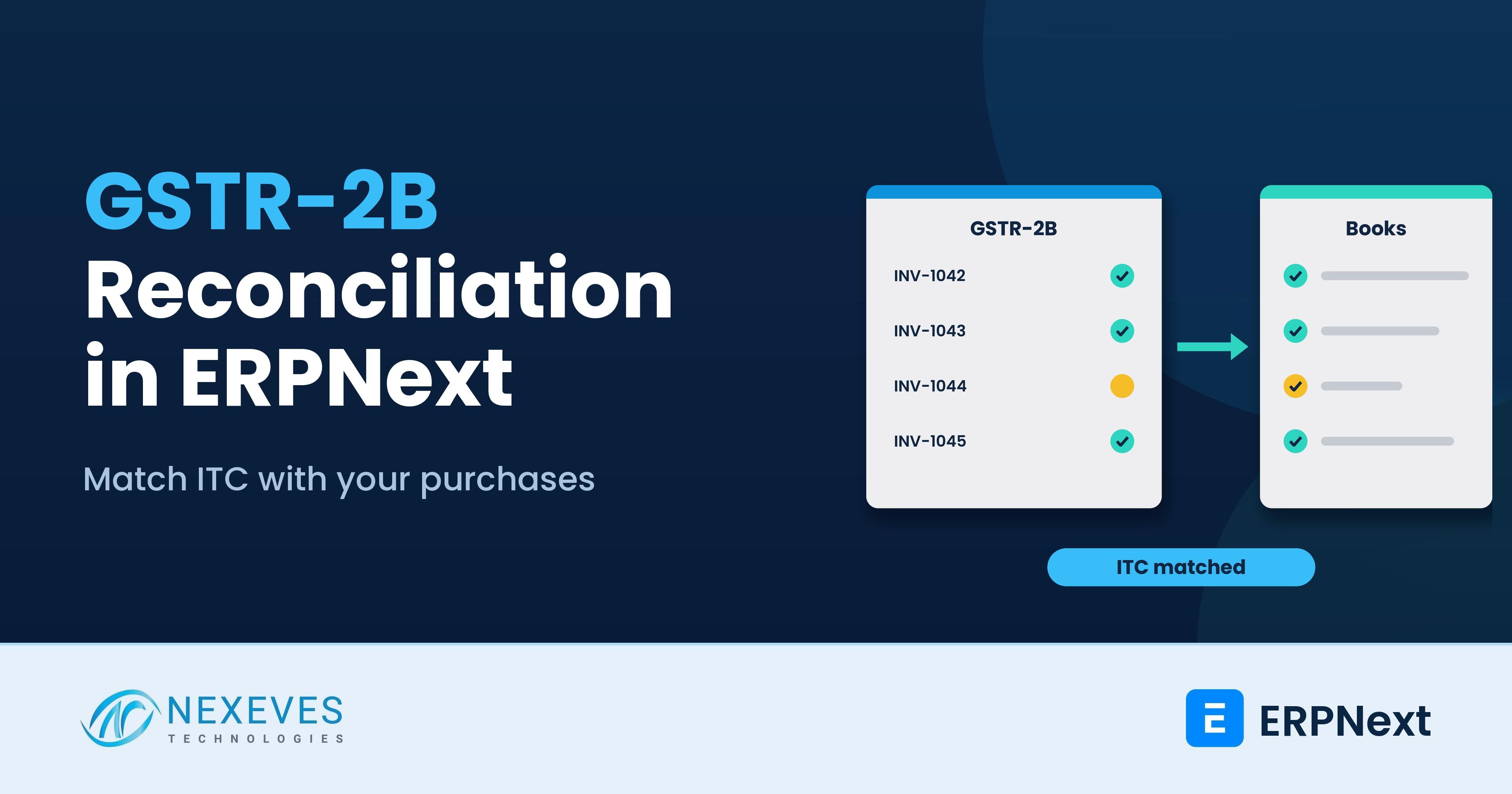
Every month, an Indian business files GSTR-3B and claims input tax credit on its purchases. The credit it can claim is guided by what suppliers have filed and what appears in GSTR-2B. If your purchase books and your 2B do not agree, you either under-claim credit and lose cash, or over-claim and face notices. Doing this in Excel with VLOOKUP is how many finance teams still spend the first week of every month.
ERPNext solves it with the Purchase Reconciliation Tool in the India Compliance app. It downloads GSTR-2A and GSTR-2B, matches them with your Purchase Invoices, and lets you accept, link, ignore or create missing entries. This guide shows how to set it up, how the matching actually works, how to deal with each status, and a monthly routine that fits a CA-led filing calendar. It follows the India Compliance documentation and the ERPNext documentation page on 2A and 2B mismatches.
If you have not set up GST yet, start with ERPNext GST setup with India Compliance. For how tax is calculated on documents, read how taxes are calculated in ERPNext.
Key takeaways
- GSTR-2B is static, GSTR-2A is dynamic. The India Compliance documentation notes that GSTR-2B should be the base for filing GSTR-3B, while 2A shows live detail such as the supplier return status.
- Matching is rule-based: supplier GSTIN, company GSTIN, bill number, place of supply, reverse charge, taxable value and each tax amount. Differences up to Rs 1 become suggested matches.
- Setup needs GST Portal API access and a Returns credential in GST Settings. It uses OTP, and you can upload the JSON files manually if API access is off.
- Accept, Pending and Ignore are decisions inside ERPNext. They do not change anything on the GST Portal.
ITC mismatches eating your month-end?
Send us one month of purchases and your 2B download. We will show you how the tool matches in a free 30-minute session.
Review my ITC mismatches → WhatsApp us: +91 8089051848
Or email info@nexeves.com
GSTR-2A vs GSTR-2B in one table
| GSTR-2B | GSTR-2A | |
|---|---|---|
| Nature | Static statement of input credit available for a period, generated once | Dynamic record that updates as suppliers file |
| Which invoices appear | Invoices for which the supplier has filed GSTR-1, in the relevant cut-off | Invoices as on the date you download |
| Why you use it | Base for the credit you claim in GSTR-3B | Extra detail: supplier return status, live GSTIN status, invoices uploaded but not yet filed |
| How often to download | Once a month after it is generated | Every few days if you chase suppliers or time vendor payments |
An invoice in the current month's 2B may relate to an earlier period, so you cannot match it by month alone. The tool handles this by working with the GST Inward Supply records it creates for each invoice. Always confirm the credit rules for your case, such as time limits and conditions, with your chartered accountant, because this guide covers the tool and not the law.
Step 1: Prepare the books
Reconciliation is only as good as the purchase entries. Before you start:
- Enable Require Supplier Invoice Number for GST Purchases in GST Settings, so the bill number is always entered. The documentation recommends this to improve matching.
- Make sure suppliers have the right GSTIN on their party record and on the address. The India Compliance app can fill party details from the GSTIN.
- Enter the supplier's bill number exactly as printed and use the bill date, not the posting date.
- Record reverse-charge purchases, imports and bills of entry correctly, because they are matched on reverse charge and place of supply too.
Step 2: Connect the tool to the GST Portal
- On the GST Portal, open My Profile, then Manage API Access, enable API requests and choose how long the session stays active. The documentation suggests a longer duration, up to 30 days, to avoid frequent OTP prompts, which also helps the auto-reconcile feature.
- In ERPNext, open GST Settings and add a credential row for the company GSTIN with the service set to Returns and your GST Portal username. Unlike e-invoice and e-way bill services, the Returns API uses OTP and no password.
- If your company has several GSTINs, add one row for each GSTIN.
If APIs are disabled for your site, you can still use the tool. Download the JSON files from the GST Portal and use the Upload 2A/2B option instead.
Step 3: Download 2A and 2B
Open the Purchase Reconciliation Tool, select the company GSTIN and period, and click download. ERPNext starts an encrypted session with the GST Portal, you enter the OTP, and the data is saved as GST Inward Supply records, with a GSTR Import Log tracking the monthly download status. If the portal has too many records, it may queue the 2A request and the tool retries every few minutes.
Want reconciliation done before GSTR-3B, not after?
We configure the tool, train your accounts team and set a monthly routine tied to your filing calendar and your CA.
Set up my ITC routine → WhatsApp us: +91 8089051848
Or email info@nexeves.com
Step 4: Understand the match statuses
The tool compares the invoices your suppliers filed with your submitted Purchase Invoices and Bills of Entry. An invoice matches when supplier GSTIN, company GSTIN, financial year, bill number, place of supply, reverse charge, taxable value and each tax amount (CGST, SGST, IGST and cess) are the same.
| Status | What it means | What you do |
|---|---|---|
| Exact Match | Every field is the same | Accept in bulk |
| Suggested Match | Bill number is similar (for example BB/0045/25-26 and 45) or amounts differ by Rs 1 or less | Check and accept, or unlink |
| Mismatch | Same supplier and bill, but other values differ | Compare the columns and fix whichever side is wrong |
| Manual Match | You linked the two yourself | Review at month-end for sanity |
| Only in 2A/2B | The supplier filed it but you have no matching purchase | Check if it is yours. If yes, create the missing purchase. If not, ignore or query the supplier |
| Only in Books | You booked it, but it is not in downloaded 2A or 2B | Chase the supplier to file, hold the credit and review vendor payment |
Bill numbers are compared after removing slashes, hyphens, leading zeros and the financial year, and bill dates more than 10 days apart are not matched automatically. These rules come from the ERPNext documentation, and they explain most "why did it not match" questions.
Step 5: Fix mismatches the right way
- Taxable value differs: often because nil-rated, exempt or non-GST items are not part of the taxable value, but the supplier showed them in the B2B section. If the tax amounts match, accept the match.
- Cess missing: cess counts only when its account is set as the cess account in GST Settings, then amend the invoice.
- Tax split differs: CGST plus SGST in your books against IGST in 2B, or the opposite, means the place of supply differs. Check the supplier address and your own on the invoice.
- Rounding: differences up to Rs 1 are suggested as matches. Larger gaps need a corrected invoice.
- Nothing listed or the download fails: confirm you downloaded the period first, the Returns credential exists, the portal session is active, and the GSTIN is right.
To link records by hand, select both and use Actions, then Link. To undo, use Unlink. When you Accept, the Purchase Invoice reconciliation status becomes Reconciled, and Ignore removes it from the reconciliation. Remember that none of these actions changes anything on the GST Portal.
When 2B shows an invoice you never booked, a quick report to the purchase team often finds a delivery that never reached the books. Our guide to ERPNext procurement automation shows how to avoid these gaps at source.
A monthly ITC routine
| When | Task | Owner |
|---|---|---|
| Day 1 to 5 | Book all purchase invoices and bills of entry for the month, using exact supplier bill numbers | Accounts executive |
| After 2B generation | Download GSTR-2B for the period, and update 2A for the current year | Accounts executive |
| Next 2 to 3 days | Accept exact matches, review suggested matches, fix mismatches, create missing purchases where valid | Senior accountant |
| Before GSTR-3B | Export the unreconciled list, send vendor reports for "Only in books" invoices, and agree the credit with your CA | Finance head and CA |
| After filing | Keep the report and decisions as audit evidence, follow up on pending vendor corrections | Accounts team |
India Compliance includes a one-click report you can share with vendors, which saves the back-and-forth emails. Use it to ask suppliers to file or correct invoices before the filing date, and build it into your vendor payment policy: pay when the invoice appears in 2B, or hold part of the payment until it does. That is a commercial policy decision for you and your CA.
Common mistakes we see
- Reconciling only at filing time. Do it on a rolling basis, so surprises arrive early.
- Entering a different bill number format than the supplier. The tool normalises some characters, but not everything.
- Booking against the wrong GSTIN when a supplier has several registrations.
- Letting different people accept matches without a review step.
- Treating Accept as filing. It is a record in ERPNext only.
Our guide on ERPNext TDS setup is the companion for the other monthly compliance task, and ERPNext vs Tally Prime compares how each handles GST reconciliation if you are switching systems.
How Nexeves helps
We configure India Compliance, GST Settings and purchase reconciliation, clean historical purchase data, and train your accounts team with your CA. See our ERPNext implementation services or write to us through the contact page.
Frequently asked questions
How do I reconcile GSTR-2B in ERPNext?
Install India Compliance, enable GST Portal API access, add a Returns credential in GST Settings, then open the Purchase Reconciliation Tool, download or upload 2A and 2B, and match them with your Purchase Invoices. Accept exact matches, review suggested ones and fix mismatches.
What is the difference between GSTR-2A and GSTR-2B?
GSTR-2B is a static statement of input credit available for a period. GSTR-2A is dynamic and updates as suppliers file. The India Compliance documentation notes that GSTR-2B is used as the base for GSTR-3B, while 2A gives extra detail such as the supplier return filing status.
Why does my purchase invoice not match GSTR-2B in ERPNext?
Typical reasons are a different bill number format, a bill date more than 10 days apart, wrong place of supply, a missing cess account, differing taxable value for exempt items, or amounts that differ by more than Rs 1.
Can I use the tool without GST Portal API access?
Yes. If APIs are disabled, download the 2A and 2B JSON files from the GST Portal and use the Upload option in the Purchase Reconciliation Tool.
Does accepting a match change anything on the GST Portal?
No. Accept, Pending and Ignore record your decision in ERPNext only. They do not change data on the GST Portal.
How often should I reconcile purchases with GSTR-2B?
Many businesses download 2B once a month after it is generated and update 2A more often. Reconciling continuously during the month avoids a rush before the GSTR-3B due date. Confirm your filing calendar with your CA.
Claim the credit you are entitled to, with proof
Nexeves configures India Compliance, GST Settings and purchase reconciliation for Indian businesses on ERPNext.
Book my free GST review → WhatsApp us: +91 8089051848
Or email info@nexeves.com
Nexeves serves India & the GCC: UAE (Dubai, Abu Dhabi), Saudi Arabia (Riyadh, Jeddah), Qatar (Doha), Kuwait, Bahrain and Oman (Muscat).


No comments yet. Login to start a new discussion Start a new discussion