Ask a sales manager how prices work and you hear a list of exceptions: this customer gets 5 percent, that distributor gets a special rate, buy ten and get one free, export customers pay in dollars, and the festival offer ends on Sunday. If those exceptions live in people's heads or in a WhatsApp group, you lose margin silently and your invoices disagree with your quotations.
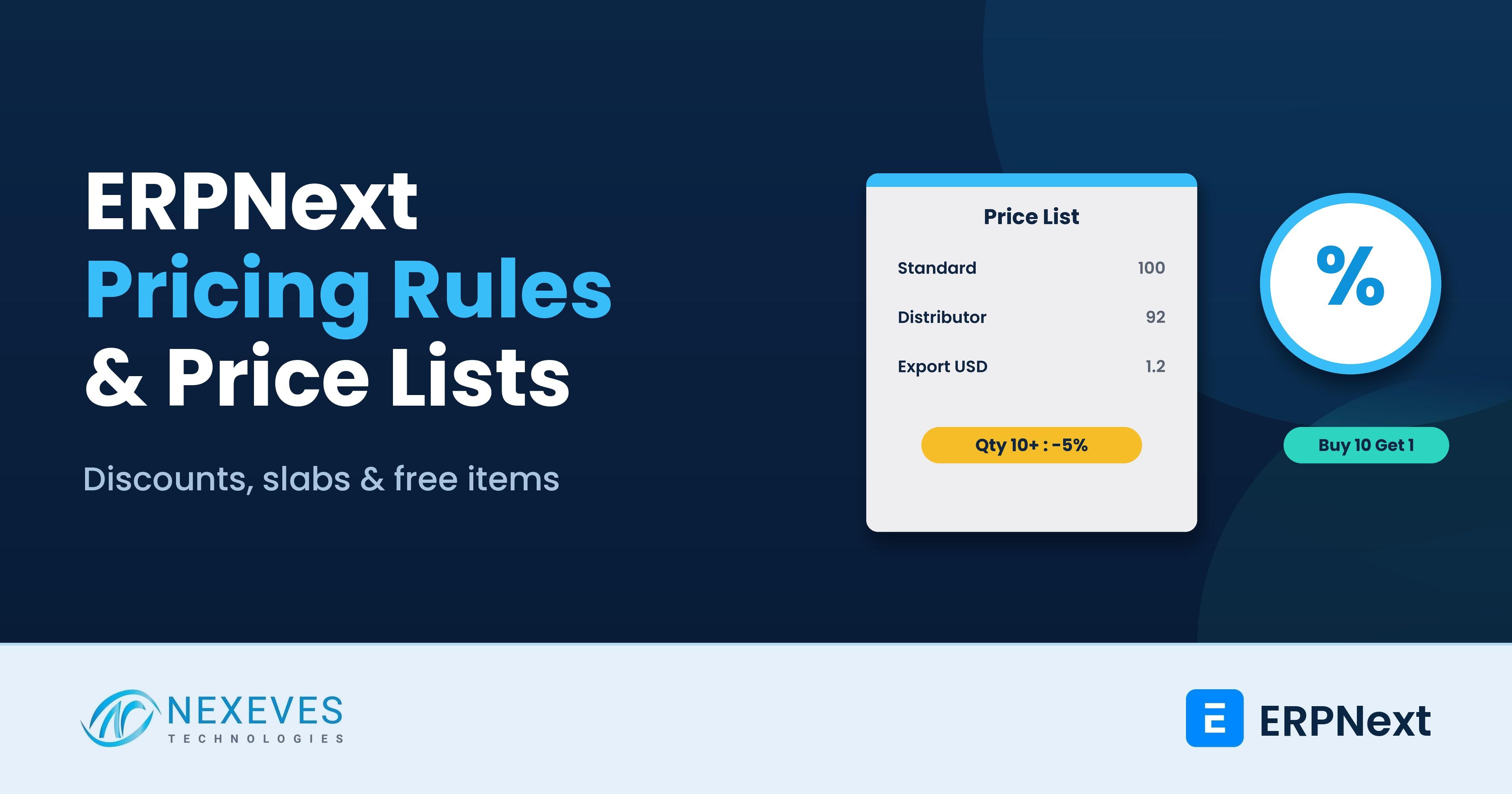
ERPNext handles this with three building blocks: Price Lists for the base price, Pricing Rules for conditional discounts, rates and free items, and Promotional Schemes for multi-slab campaigns. This guide shows how to use each, how they interact, and how to test them before they touch real invoices. It follows the current ERPNext documentation and adds the setup habits we use for trading, wholesale and retail clients.
If your offers run mainly at the counter, read our post on automating POS offers and discounts with ERPNext as well. For tax on discounted invoices, see how taxes are calculated in ERPNext.
Key takeaways
- Use the right tool: a Price List and Item Price for the standard rate, a Pricing Rule for a repeatable exception, a Promotional Scheme for a multi-slab campaign, and a manual discount only for a one-off.
- A rule can be narrow or broad: it can apply on item, item group, brand or the whole transaction, and be limited by customer, customer group, territory, supplier, quantity, value, dates, company, currency, warehouse and price list.
- Overlaps must be designed: set priority and decide whether multiple rules may stack before you go live. Otherwise a surprise discount appears on an invoice.
- Test on a non-production company with real customers and quantities, then recalculate a transaction to prove the rule applies and also stops applying.
Different prices for different customers?
Tell us how you price today. We will map it to Price Lists and Pricing Rules in a free 30-minute call.
Plan my pricing setup → WhatsApp us: +91 8089051848
Or email info@nexeves.com
The pricing building blocks
| Tool | What it does | Use it when |
|---|---|---|
| Price List and Item Price | Stores the standard selling or buying rate for each item, per currency and optionally per customer, supplier or UOM | You have a list price, a distributor price, an export price or a supplier rate card |
| Pricing Rule | Replaces the rate, applies a discount percentage or amount, adds a margin or gives a free product when conditions match | You have a repeatable exception such as customer group discount or buy 10 get 1 free |
| Promotional Scheme | Generates several Pricing Rules from one campaign with quantity or amount slabs | A campaign has tiers such as 5 percent above Rs 25,000 and 8 percent above Rs 50,000 |
| Coupon Code | Requires a code before a Pricing Rule applies | You issue vouchers or partner codes |
| Manual discount on the transaction | A one-time change by an authorised user | A single negotiated deal that will not repeat |
Step 1: Build clean Price Lists first
Pricing Rules sit on top of prices, so the foundation must be right. Create separate Price Lists when the audience or currency differs, for example Standard Selling, Distributor, Export USD, Standard Buying. Each list is marked for selling, buying or both, and has a currency.
- Create the Price List and set its currency.
- Add an Item Price for every item in the list. You can import them in bulk with the Data Import tool, using a CSV from your current price file.
- Set a default selling and buying Price List in Selling Settings and Buying Settings.
- Attach a Price List to customer groups or individual customers, so the right list loads automatically on a quotation or invoice.
For a customer who has an agreed fixed rate on specific items, an Item Price limited to that customer is often cleaner than a Pricing Rule. Use a Pricing Rule when the logic depends on conditions such as quantity or date, not just who the customer is.
Step 2: Create a Pricing Rule
Open Selling, then Items and Pricing, then Pricing Rule. According to the ERPNext documentation, the key decisions are:
- Title: make it describe the audience and offer, for example "Dealer A - 5 percent on Cables".
- Apply On: Item Code, Item Group, Brand or Transaction.
- Price or Product: choose Price for a rate, discount or margin, or Product for a free item.
- Party information: tick Selling, Buying or both, and optionally limit it to a Customer, Customer Group, Territory, Sales Partner, Campaign, Supplier or Supplier Group.
- Conditions: minimum and maximum quantity or amount, valid from and valid up to dates, company, currency, warehouse and the specific Price List.
- Result: a rate, a discount percentage, a discount amount, or a margin over the fetched rate.
Quantity limits are checked in the item's stock UOM. If the order falls below the minimum or above a non-zero maximum, ERPNext does not apply the rule. A Rate defined in an eligible Pricing Rule takes precedence over the normal Item Price rate, so use the For Price List field when a rule should apply only to one list.
Worked examples
| Business requirement | How to set it up |
|---|---|
| Distributors get 5 percent off all items in the Cables group | Apply On Item Group = Cables; Price; Selling; Applicable For Customer Group = Distributor; Discount Percentage 5 |
| Order 100 or more units of one item and pay a lower rate | Apply On Item Code; Min Qty 100; Rate set to the slab price; leave Max Qty at 0 |
| Buy 10 and get 1 free of the same item | Product discount; enable Same Item; Min Qty 10; free quantity 1 |
| Free sample item with any order above a value | Apply On Transaction or item group; Min Amt set; Product discount with a different Free Item |
| Diwali or Ramadan offer from 1st to 15th | Any rule with Valid From and Valid Up To dates. Disable it afterwards instead of deleting it |
| Supplier rebate on bulk purchases | Buying; Applicable For Supplier; quantity or amount slab; discount percentage |
| Discount that depends on a calculation | Dynamic Condition tab with a single-line Python expression, only when standard fields cannot express it. Test in a non-production company |
Discount rules fighting each other?
We audit your active Pricing Rules, remove overlaps and set priorities, so every quotation and invoice picks the price you intended.
Audit my pricing rules → WhatsApp us: +91 8089051848
Or email info@nexeves.com
Step 3: Control overlaps, priority and stacking
The most common pricing complaint in ERPNext is "the discount is wrong", and the cause is almost always two rules matching the same item. The documentation recommends testing overlapping rules before activating them. The levers are:
- Has Priority and Priority: a more specific rule can win over a general one. Give the narrow rules (single customer, single item) a higher priority than the broad ones (customer group, item group).
- Apply Multiple Pricing Rules: enable it only when discounts are meant to stack.
- Apply Discount on Discounted Rate: when stacking, ERPNext can compound successive discounts instead of adding the percentages. Decide your policy first, because 10 percent plus 5 percent is not the same as 10 percent then 5 percent.
- Threshold for Suggestion: prompts the user when the quantity or amount is close to the minimum, which is a useful upsell nudge.
- Validate Applied Rule: shows the configured rule description when a manually entered value does not match what the rule would give.
Keep a simple sheet of active rules: owner, purpose, scope, dates and priority. When two people create rules independently, the sheet is how you find conflicts.
Cumulative and tiered offers
For rules that depend on a customer's purchases across a period, enable Is Cumulative. ERPNext then checks eligible transactions across the defined period and applies the rule to the transaction that crosses the threshold. It is not applied retroactively to earlier transactions, so explain this to the sales team to avoid arguments.
When a campaign has several slabs, use a Promotional Scheme. It generates the multiple Pricing Rules for you, which is much easier to maintain than creating each slab by hand.
Pricing, margin and approvals
Discounting is a margin decision, so connect it to your controls:
- Use an approval workflow when a discount exceeds your limit, so a manager must approve it before submission.
- Restrict who can edit rate and discount fields, using role permissions.
- Review realised margin with the Gross Profit report, not only the list price. A big discount on a low-margin item may cost more than it gains.
- Use Ignore Pricing Rule only for an approved exception, since it bypasses all matching rules.
Troubleshooting: the rule does not apply
| Symptom | Check |
|---|---|
| Rule not applied at all | Is it disabled? Selling or Buying ticked correctly? Item, group and party scope, quantity and amount, validity dates, company, currency, warehouse and Price List. Then remove and re-add the item or recalculate |
| A different rule appears | Search for other active rules on the same item and party. Review priority and multiple-rule settings |
| Discount disappears after editing the order | The new quantity, value, party, date or Price List no longer meets the rule |
| Free item comes back after removal | Enable Don't Enforce Free Item Qty if users may change or remove the free item |
| Cumulative rule did not trigger | Check Min Amt, Max Amt, period, party, item and transaction status. It applies to the transaction that crosses the threshold |
| Rate looks wrong in a foreign currency | Check the rule currency and the Price List currency match the transaction |
Go-live checklist for pricing
- Clean the item master and units of measure first. Duplicate items break price logic.
- Load Price Lists and Item Prices, and have sales sign off a sample of 20 items.
- Create rules in a test company, run ten real orders from last month and compare with the invoices you actually issued.
- Train sales on what to expect: which rules are automatic, which need approval.
- Schedule a monthly review to disable expired rules and check margins.
If you are still choosing between a heavily customised pricing script and standard rules, read our warning on over-customisation risks. Standard Pricing Rules cover most requirements and upgrade cleanly.
How Nexeves helps
We design the price structure with your sales and finance heads, load Price Lists, configure the rules and approvals, and test against your recent invoices. See our ERPNext customisation service or write to us through the contact page.
Frequently asked questions
What is the difference between a Price List and a Pricing Rule in ERPNext?
A Price List stores the standard rate for each item in a currency. A Pricing Rule changes the result when conditions are met, such as a discount for a customer group or a free item above a quantity. The rule does not change the underlying Item Price.
How do I give one customer a special price in ERPNext?
Either create an Item Price for that customer in a Price List, or create a Pricing Rule with Selling ticked, Applicable For set to Customer and the customer chosen. Use the Item Price when the rate is fixed, and the rule when it depends on quantity or dates.
How do I set a buy one get one free offer?
Create a Pricing Rule with Apply On Item Code, choose Product as the discount type, enable Same Item, set the minimum quantity and the free quantity. Test it on a quotation before using it on invoices.
Why is my Pricing Rule not working?
Check that it is not disabled, that the item, party, quantity, amount, dates, company, currency, warehouse and Price List all match, and that no higher-priority rule is overriding it. Recalculate the transaction after fixing the condition.
Can ERPNext stack multiple discounts?
Yes, when Apply Multiple Pricing Rules is enabled. You can also compound them with Apply Discount on Discounted Rate. Decide the policy first and test overlapping rules before you activate them.
When should I use a Promotional Scheme instead of a Pricing Rule?
Use a Promotional Scheme when a campaign has several quantity or amount slabs, because it generates the matching Pricing Rules for you. Use a single Pricing Rule for a direct conditional result.
Make your price policy part of the system
Nexeves configures Price Lists, Pricing Rules, discount approvals and reports for businesses in India and the GCC.
Book my free pricing review → WhatsApp us: +91 8089051848
Or email info@nexeves.com
Nexeves serves India & the GCC: UAE (Dubai, Abu Dhabi), Saudi Arabia (Riyadh, Jeddah), Qatar (Doha), Kuwait, Bahrain and Oman (Muscat).

No comments yet. Login to start a new discussion Start a new discussion