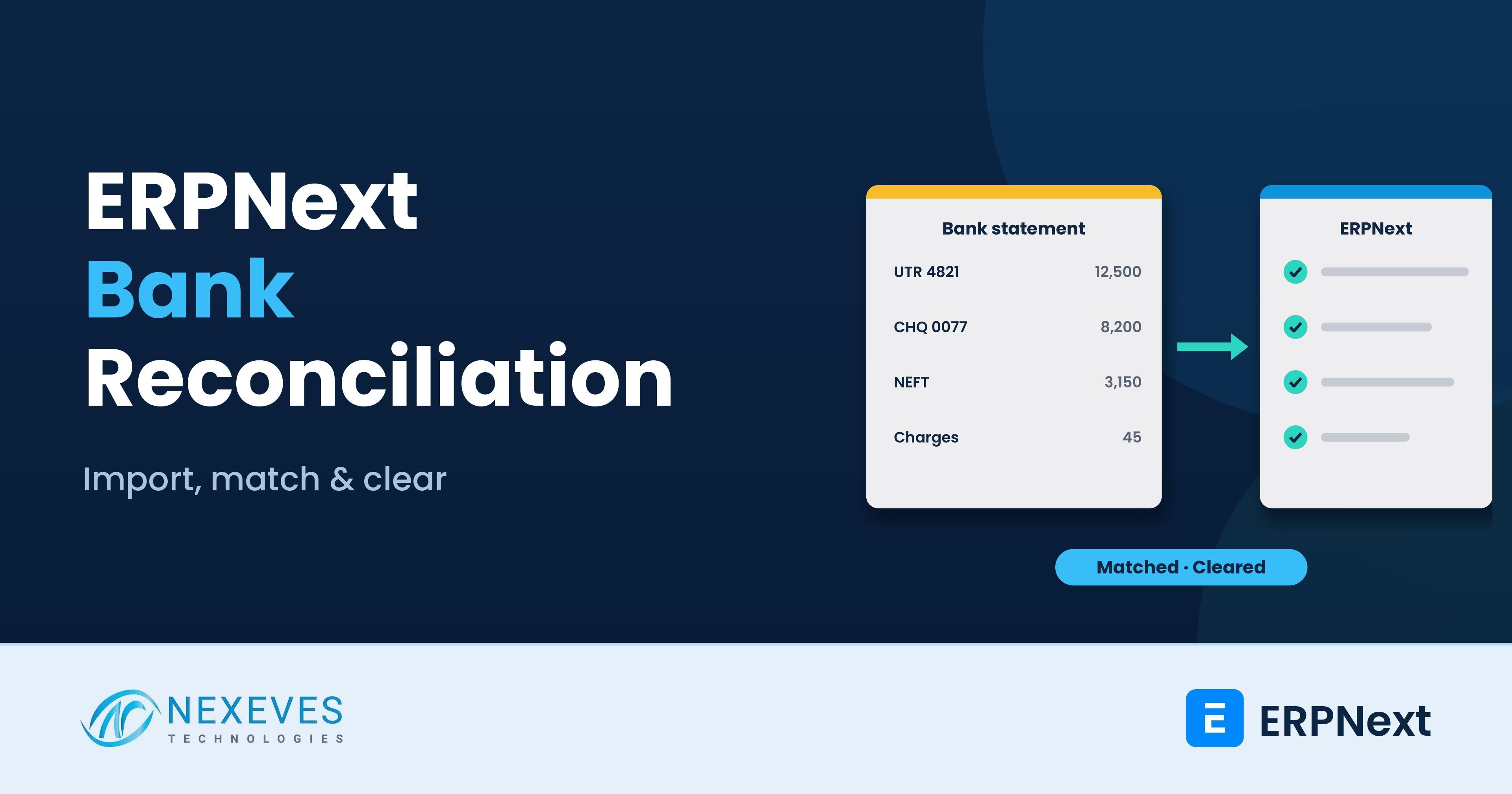
A bank balance that does not match the ledger is the most common reason a month-end close takes longer than it should. In ERPNext, bank reconciliation is a short, repeatable job when the setup is right and a painful one when it is not. The difference is rarely the software. It is whether payments are recorded with the right reference, whether bank charges are posted, and whether someone owns the routine.
This guide walks through the ERPNext tools in the order you use them: company bank accounts, importing a statement, the Bank Reconciliation Tool, auto reconcile, bank clearance, and the reports that prove the numbers agree. It follows the behaviour described in the official ERPNext documentation, and it adds the habits we use on client projects in India and the GCC, including cheque-heavy businesses.
Bank reconciliation sits on top of clean payment entries. If you are still setting up your books, read how ERPNext simplifies daily accounting first, and our guide to the chart of accounts for the bank ledger structure.
Key takeaways
- Reconciliation records clearance, not accounting. It sets a clearance date on vouchers. It does not move the posting date, and a missing bank charge still needs its own entry.
- Auto Reconcile matches on reference numbers. A statement line is auto-matched only to a Payment Entry or Journal Entry with the same reference number, so record cheque and UTR numbers when you post.
- Import the statement, do not retype it. Use the Bank Statement Import template, keep its columns, and check that dates and currency match the bank account.
- Finish with a report, not a feeling. The Bank Reconciliation Statement lists what ERPNext has posted and the bank has not cleared, and the difference must be explained line by line.
Bank balance in ERPNext never matches the statement?
Send us a month of statement and ledger. We will find the differences in a free 30-minute review and show you a clean routine.
Review my reconciliation → WhatsApp us: +91 8089051848
Or email info@nexeves.com
What bank reconciliation actually does in ERPNext
The ERPNext documentation describes it simply: compare the bank statement with the entries in ERPNext, match existing vouchers first, create missing accounting entries only when necessary, and explain every remaining difference between the statement and the ledger balance.
It helps to separate three jobs that people mix up:
| Job | Tool | What it answers |
|---|---|---|
| Link party payments to invoices | Payment Reconciliation | Which invoice did this customer or supplier payment settle? |
| Match statement lines to ledger entries | Bank Reconciliation Tool | Which Payment Entry or Journal Entry does this bank line correspond to? |
| Prove the closing balance | Bank Reconciliation Statement report | What is the difference between the bank balance and the ledger balance, and why? |
Payment Reconciliation is about customers and suppliers. Bank reconciliation is about the bank. Use both, in that order, because an unallocated payment in the ledger is hard to match to a statement line later.
Step 1: Set up the company bank account
- Create the Bank record if it does not exist.
- Create a Bank Account for your company with the account number or IBAN, tick that it is a company account, and link it to its ledger account under Bank Accounts in the chart of accounts.
- Make sure the ledger account's currency matches the bank account. A statement in AED imported against a bank account in another currency is a classic cause of strange balances.
- Set the account as the default in your Mode of Payment, so every Payment Entry posts to the right ledger.
Use one ledger account per physical bank account. Combining several bank accounts in one ledger makes reconciliation almost impossible.
Step 2: Record payments so they can be matched
Most reconciliation trouble starts before the statement arrives. When your team records a receipt or payment, make sure the entry carries:
- the Reference No from the bank, such as the UTR or transaction ID for bank transfers, the cheque number for cheques, or the card or gateway settlement reference;
- the Reference Date, which is the cheque date or transfer date;
- the right bank account and mode of payment.
Auto Reconcile in ERPNext matches a bank transaction only with a Payment Entry or Journal Entry whose reference number (for a Journal Entry, the cheque number) is the same as the transaction's reference. Entries with a different or empty reference have to be matched by hand. This single habit decides how much of your reconciliation is automatic.
If you collect online payments, see our guide to ERPNext Razorpay payment links and reconciliation, because gateway settlements arrive as one lump sum and need their own matching routine.
Step 3: Import the bank statement
Open Bank Statement Import, select the company bank account, and download the template. Then:
- Paste or map the statement into the template and keep its columns.
- Check that dates are in your site's date format. Look at a few imported dates before you reconcile.
- Check that the statement currency equals the bank account currency.
- Attach the file, start the import and review the Bank Transactions created.
Per the documentation, only users with the System Manager role can import a bank statement. If Start Import appears to do nothing, check that a bank account is selected and the file is attached, then reload the form. Import each statement period once. Duplicate imports are a common reason for a difference you cannot explain.
Direct bank feeds depend on your bank. Some feeds exist through third-party integrations, but they are mainly built for banks in specific regions, so confirm that your Indian or GCC bank is supported before you plan around it. For most of our clients, a monthly or weekly statement import is the practical route.
Want bank reconciliation to take hours, not days?
We set up bank accounts, statement import, naming of references and a month-end routine that your accountant can follow.
Set up my bank routine → WhatsApp us: +91 8089051848
Or email info@nexeves.com
Step 4: Use the Bank Reconciliation Tool
- Open the Bank Reconciliation Tool under Accounting, then Banking. Select the company bank account and the statement date range.
- Enter the bank statement closing balance. Compare the tool's account opening balance, which is the balance up to the day before the From Date.
- For each Bank Transaction, either match it with an existing Payment Entry or Journal Entry, or create a missing voucher after checking that it does not already exist.
- Record bank charges, interest and other fees as proper vouchers using the correct expense or income account, then reconcile those.
- Keep going until the unreconciled amount is zero or every remaining item is explained.
ERPNext suggests matches from amount, date, currency and reference, and you can expand the date range when settlement dates differ. If one bank line combines several payments, you can match it to several entries as long as the total explains the statement amount.
Run Auto Reconcile for the easy lines
For routine lines, use Auto Reconcile. With many transactions it runs in the background, so refresh after a few minutes. Anything left unmatched is a real exception that needs a human, such as a missing reference, a duplicate, an unrecorded charge or a payment that was never entered. Reviewing only those exceptions is where the time saving comes from.
Special cases you will meet
| Case | How to handle it in ERPNext |
|---|---|
| Transfer between your own bank accounts | Record one Payment Entry with type Internal Transfer, or one Journal Entry with two bank accounts. Reconcile it in the paying bank first, then in the receiving bank. A document has only one clearance date, and the side you reconcile last is kept. |
| Invoice paid with the Paid or POS payment checkbox | There is no Payment Entry. Such invoices appear under the Sales Invoice and Purchase Invoice options in the tool. |
| Post-dated cheques | Record the Payment Entry with the cheque number and cheque date. Reconcile only when the bank clears it. Our UAE property management guide shows a PDC-heavy example. |
| Already cleared by mistake | Clear its clearance date in Bank Clearance, then reconcile it again. |
| Gateway or POS settlement lump sums | Match the single bank credit to the settlement voucher, which in turn is backed by the individual invoices and fees. |
| Foreign currency account | Reconcile in the bank account currency, and let exchange gain or loss post through the usual revaluation process. See our multi-currency accounting guide. |
Prove it: the Bank Reconciliation Statement
When the matching is done, run the Bank Reconciliation Statement report for the account and date. It lists the entries ERPNext has posted that the bank has not yet cleared. The classic proof is:
Balance as per bank statement
+ cheques issued but not yet cleared
- cheques deposited but not yet cleared
= Balance as per ERPNext ledger
If the numbers do not agree, the ERPNext documentation suggests this order of investigation:
- Run Bank Clearance for the account and period. Entries without a clearance date are listed, and you can set dates for entries the bank has already processed.
- Look for items on the statement that are not in ERPNext: bank charges, interest, direct debits, standing instructions. Post them.
- Check the opening balance in the tool. An entry dated on the From Date is not in the opening balance.
- Check duplicate statement imports and wrong currencies.
- Do not force the difference into the reconciliation date. Identify it.
A clearance date and the posting date are different on purpose. If the clearance date changed but the General Ledger posting date did not, that is expected behaviour: reconciliation records when the bank cleared the transaction, not when the accounting entry was dated.
A monthly routine that works
- Daily or weekly: record receipts and payments with references on the day they happen.
- Weekly: import the statement and run Auto Reconcile. Clear obvious exceptions while the memory is fresh.
- Month-end: post bank charges and interest, finish matching, run the Bank Reconciliation Statement and keep a signed copy.
- Review: a second person checks items older than 30 days. Old uncleared cheques deserve a decision, such as stop and reissue.
High-volume accounts benefit from daily or weekly work with a formal month-end completion. Our post on cash flow visibility with ERPNext shows why an up-to-date bank position matters to decisions beyond accounting.
How Nexeves helps
We configure bank accounts, payment references, import formats and a month-end checklist as part of every ERPNext implementation, and we clean up reconciliation backlogs for existing users. Tell us about your bank and volumes on the contact page.
Frequently asked questions
How do I do bank reconciliation in ERPNext?
Create the company bank account, import the bank statement with the Bank Statement Import template, open the Bank Reconciliation Tool, match each bank transaction with a Payment Entry or Journal Entry, post missing charges, and confirm the closing balance with the Bank Reconciliation Statement report.
Why does Auto Reconcile not match anything in ERPNext?
Auto Reconcile matches a bank transaction only with a Payment Entry or Journal Entry that has the same reference number. If your entries were saved without the UTR, transaction ID or cheque number, you must match them by hand.
Can I import a bank statement into ERPNext from Excel or CSV?
Yes. Download the template from Bank Statement Import, keep its columns, use your site date format and make sure the currency matches the bank account. Only users with the System Manager role can run the import.
What is the difference between Payment Reconciliation and Bank Reconciliation?
Payment Reconciliation links party payments to invoices. Bank Reconciliation matches accounting transactions to the bank statement and records the clearance date.
Why is my ERPNext bank balance different from the bank statement?
Common causes are uncleared cheques, unrecorded bank charges or interest, duplicate statement imports, wrong currency, and an opening balance that excludes entries dated on the start date. Use Bank Clearance and the Bank Reconciliation Statement to list and explain each difference.
How often should I reconcile the bank in ERPNext?
Match frequency to volume. Many businesses import weekly and complete a formal reconciliation at every month-end. High-volume accounts are often reconciled daily.
Make month-end bank reconciliation a routine
Nexeves configures ERPNext accounts, bank import, cheque handling and reconciliation checks for businesses in India and the GCC.
Book my free accounts review → WhatsApp us: +91 8089051848
Or email info@nexeves.com
Nexeves serves India & the GCC: UAE (Dubai, Abu Dhabi), Saudi Arabia (Riyadh, Jeddah), Qatar (Doha), Kuwait, Bahrain and Oman (Muscat).


No comments yet. Login to start a new discussion Start a new discussion