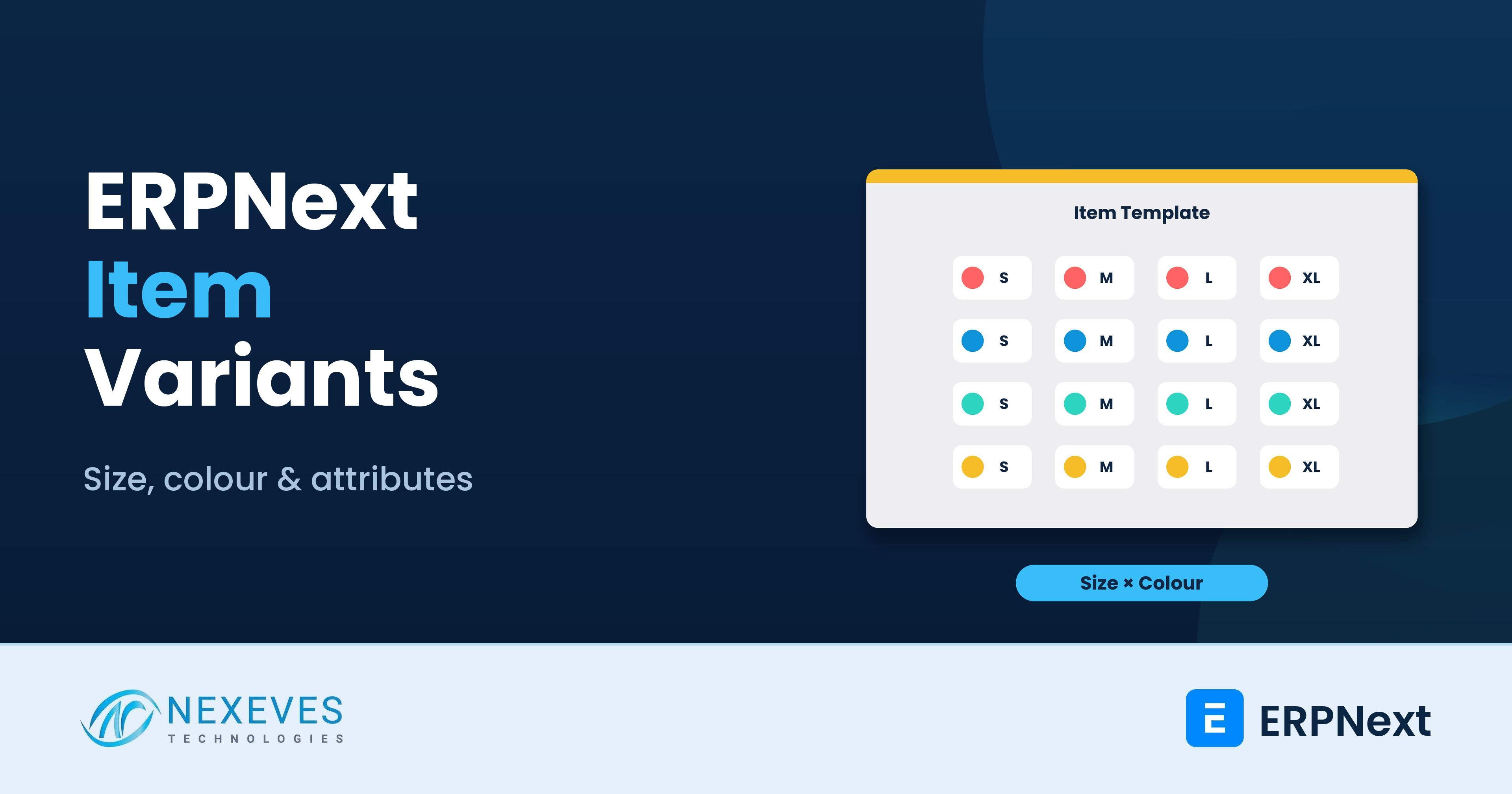
A T-shirt in five sizes and eight colours is forty stock items. A tile range in four sizes and six finishes is twenty-four. Without structure, the item master fills with near-identical codes, users pick the wrong one, and stock reports become unreadable.
ERPNext item variants solve this with templates and attributes: you define the product once and generate each size, colour or finish as a variant that inherits the template's settings. This guide explains how to design attributes, create and maintain variants, and avoid the common traps. It is based on ERPNext v15 and v16.
Key takeaways
- A template is not stocked; its variants are. The template holds shared settings, and each variant is a real item with its own stock and price.
- Design attributes carefully. Short, consistent abbreviations give readable variant codes like TSHIRT-RED-M.
- Item Variant Settings control what is copied from the template to variants when the template changes.
- Do not over-variant. Use variants for real attributes that change stock; use fields or descriptions for everything else.
Thousands of item codes and nobody can find anything?
Send us a sample of your item list. In a free 30-minute call we will show how templates and variants would organise it.
Review my item master → WhatsApp us: +91 8089051848
Or email info@nexeves.com
How variants work
| Concept | Meaning |
|---|---|
| Item Attribute | A dimension such as Size, Colour, Finish or Length, with a list of values (S, M, L) or a numeric range |
| Attribute Value and Abbreviation | Each value has an abbreviation used in variant codes, for example Red = RED, Medium = M |
| Template item | An item with "Has Variants" ticked and attributes listed; cannot be transacted or stocked |
| Variant | A normal item created from the template with one value per attribute; can be bought, sold and stocked |
| Item Variant Settings | Global settings that decide which fields copy from template to variants |
Step 1: Design the attributes
Before you create anything, list the attributes that truly change what you stock and sell:
| Business | Good attributes | Usually not attributes |
|---|---|---|
| Apparel and footwear | Size, Colour | Season, collection (use fields or item groups) |
| Tiles and sanitary | Size, Finish, Colour | Brand (use Brand) |
| Hardware and fasteners | Size, Length, Material, Finish | Pack quantity (use UOM) |
| Furniture | Size, Wood, Finish, Fabric | Custom one-off specifications (use BOM or order notes) |
| Electrical | Rating, Colour, Pole | Datasheet values (use specifications) |
Rules we follow: keep the number of attributes per template to two or three; give every value a short abbreviation in capitals; use the same attribute across templates (one "Colour" attribute, not "Colour", "Color" and "Shade"); and order values the way a user expects (XS, S, M, L, XL rather than alphabetical).
For numeric attributes such as length or weight, ERPNext allows a numeric attribute with from, to and increment values, which avoids typing long value lists.
Step 2: Create the template
- Create the item with a short code, for example TSHIRT-BASIC, and tick Has Variants.
- Add the attributes in the order they should appear in variant codes, for example Colour then Size.
- Fill the shared settings: item group, stock UOM, tax templates, default warehouse, accounts, batch or serial settings, valuation method, reorder settings if common.
- Save. The template is ready, but cannot be stocked or sold itself.
Step 3: Generate variants
From the template, use Create → Single Variant to pick one combination, or Multiple Variants to tick several values per attribute and create every combination at once. ERPNext names each variant from the template code plus the abbreviations, for example TSHIRT-BASIC-RED-M, and builds the item name and description from the values.
Create only the combinations you actually buy or make. Forty variants that are never stocked make search and reports worse.
Want our variant design worksheet?
We will send the attribute, abbreviation and naming worksheet we use for apparel, footwear, hardware and furniture ranges.
Send me the worksheet → WhatsApp us: +91 8089051848
Or email info@nexeves.com
Step 4: Item Variant Settings
In Item Variant Settings you choose which fields are copied from the template to variants whenever the template is saved. Typical fields to copy are item group, description, tax templates, accounts and UOM. Fields that may differ per variant, such as weight, barcode or reorder level, should not be copied, or changes on the template will overwrite variant values.
There are also options to allow renaming of attribute values and to skip updating variants on save for very large templates, which can speed up saving when a template has hundreds of variants.
Step 5: Prices, barcodes and images
- Prices: set prices per variant in price lists. If all sizes share a price, use a price list import that repeats the price, or a pricing rule on the item group. See pricing rules and price lists.
- Barcodes: each variant gets its own barcode, so the POS can scan the exact size and colour. See barcode and QR code in ERPNext.
- Images: attach images to variants, or to the template if all variants look the same.
Step 6: Buying, selling and POS
Users transact on variants. In sales and purchase forms, typing the template code lists its variants. In the POS, scanning a barcode selects the exact variant. For e-commerce, variant attributes can drive size and colour selectors; see Shopify and ERPNext and WooCommerce and ERPNext.
Step 7: Manufacturing with variants
A BOM can be made for the template and used when creating work orders for variants, with variant-specific raw materials selected where they differ, such as fabric colour. For many combinations, a BOM per variant is clearer. Manufacturers of garments should read our textile industry guide.
Step 8: Reporting
- Item Variant Details shows stock and sales of each variant of a template, which helps buyers see which sizes sell.
- Stock Balance filtered by the template or item group shows total stock across variants.
- Sales Analytics by item shows trends per variant.
Size-curve analysis, such as "M and L make up most of our T-shirt sales", helps buy the right mix next season. For the wider view, see ABC analysis and dead stock.
Common mistakes
| Mistake | Effect | Fix |
|---|---|---|
| Separate attributes for the same thing | Inconsistent codes and filters | One shared attribute per dimension |
| Long or missing abbreviations | Unreadable codes | Short capital abbreviations |
| Creating every combination | Bloated master, empty stock lines | Create only what you stock |
| Copying all fields from template | Variant-specific values overwritten | Choose copy fields carefully |
| Using variants for one-off custom orders | Thousands of single-use items | Use order notes or order-specific BOMs |
| Changing attributes after stock exists | Hard to correct | Design first, then create |
Migrating an existing item list to variants
If your item master already has separate codes for each size and colour, plan the migration: create templates and attributes, map each old code to a variant, import the variants with their old codes in a field or as barcodes, then move stock with a reconciliation at go-live. Our posts on data migration challenges and zero-error migration help.
Frequently asked questions
What are item variants in ERPNext?
Item variants are items created from a template item with attributes such as size and colour. Each variant is a real item with its own stock, price and barcode, while the template holds shared settings.
Can a template item be sold or stocked?
No. A template with Has Variants ticked cannot be used in transactions. Only its variants can be bought, sold and stocked.
How are variant codes named in ERPNext?
By default, the variant code is the template code followed by the abbreviations of each attribute value, for example TSHIRT-BASIC-RED-M.
What does Item Variant Settings do?
It sets which fields are copied from the template to its variants when the template is saved, and offers options such as allowing renaming of attribute values.
Can I use numeric attributes like length?
Yes. An item attribute can be numeric with from, to and increment values instead of a list of text values.
Can I have different prices for each variant?
Yes. Prices are set per variant in price lists. Shared prices can be imported in bulk or applied with pricing rules.
A clean item master from day one
Nexeves Technologies designs item masters, variants, pricing and barcodes in ERPNext for retailers, distributors and manufacturers in India and the GCC.
Book a free demo → WhatsApp us: +91 8089051848
Or email info@nexeves.com
Nexeves Technologies serves India & the GCC: UAE (Dubai, Abu Dhabi), Saudi Arabia (Riyadh, Jeddah), Qatar (Doha), Kuwait and Bahrain.

No comments yet. Login to start a new discussion Start a new discussion