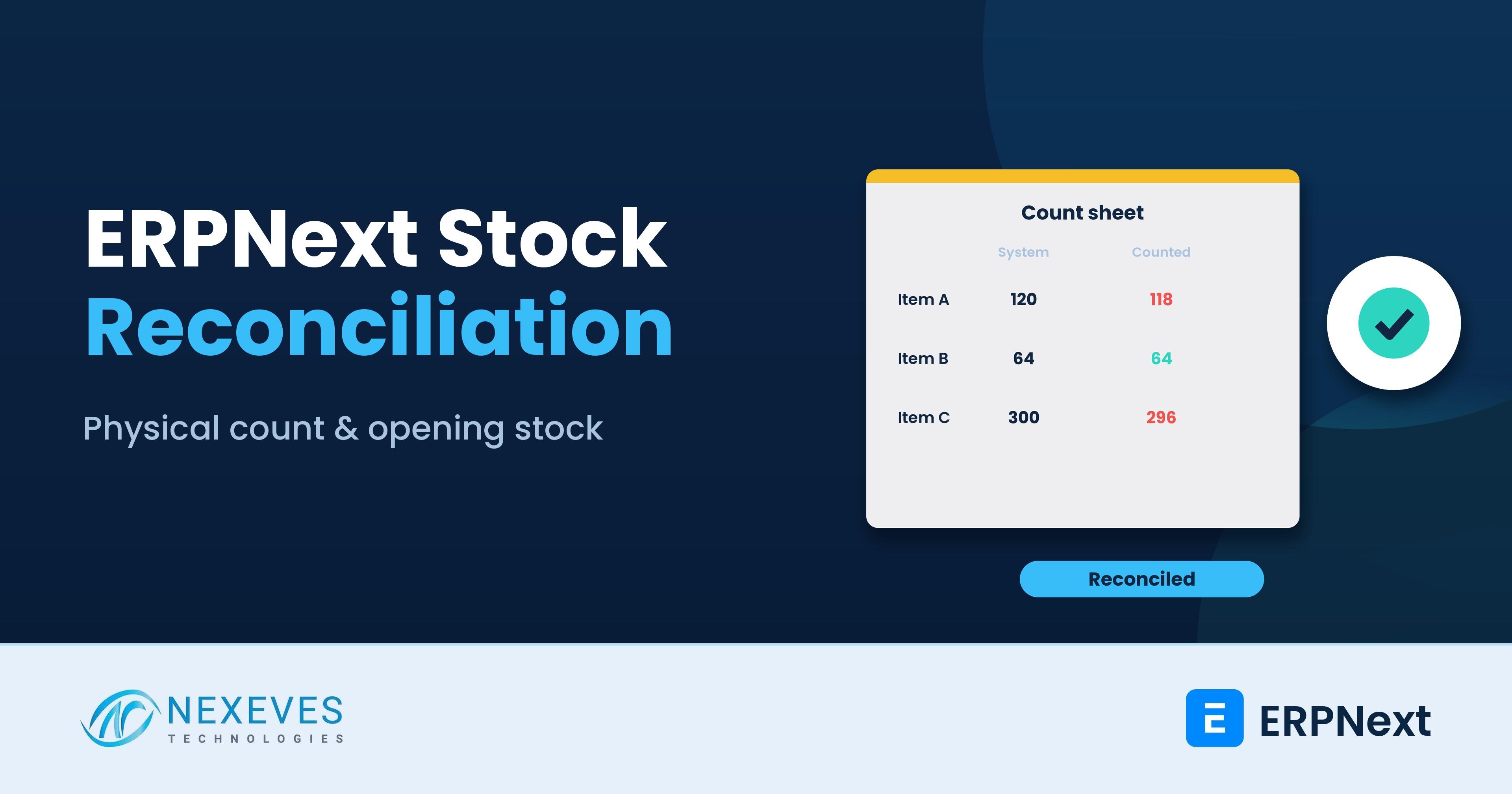
A physical count that does not match the system is one of the most common reasons owners lose faith in their ERP. Sometimes the difference is theft or breakage. More often it is process: a delivery not entered, a transfer done on paper, a count taken while goods were moving.
ERPNext stock reconciliation is the tool for two jobs: loading opening stock when you go live, and correcting the system to match a physical count. Used carefully, it keeps quantities and valuation right. Used carelessly, especially with back-dated entries, it can distort valuation for months. This guide covers both jobs, based on ERPNext v15 and v16.
Key takeaways
- Two purposes, two accounts. Opening Stock posts the difference to a temporary opening account; a normal reconciliation posts it to Stock Adjustment.
- Count at a cut-off. Stop or record all movements during the count, then post the reconciliation at that exact time.
- Batch and serial items must be counted by batch or serial number, not just by item.
- Avoid back-dating. A reconciliation dated in the past triggers reposting of later transactions and can change cost of goods sold.
Stock in the system never matches the shelf?
Tell us how you count today. In a free 30-minute call we will plan a clean count and reconciliation in ERPNext.
Plan my stock count → WhatsApp us: +91 8089051848
Or email info@nexeves.com
What Stock Reconciliation does
A Stock Reconciliation sets the quantity, and optionally the valuation rate, of an item in a warehouse at a posting date and time. ERPNext compares it with the system balance and posts the difference to the stock ledger and, with perpetual inventory, to the general ledger.
| Purpose | When to use | Difference account |
|---|---|---|
| Opening Stock | Loading stock at go-live, once per warehouse | Temporary Opening (cleared through the opening balance process) |
| Stock Reconciliation | Correcting quantities or valuation after a physical count | Stock Adjustment (an expense account) |
Do not use Stock Reconciliation for normal movements. Receipts, issues, transfers and production all have their own documents, and those give a proper trail. Reconciliation is for corrections.
Part 1: Loading opening stock at go-live
- Fix the item master first: item codes, stock units, batch and serial settings, and valuation method. These are hard to change after stock exists.
- Decide the cut-off date and time, usually the end of the last day on the old system.
- Export closing stock from the old system by warehouse, with quantity and valuation rate. For batch items include batch number and expiry; for serial items, each serial number.
- Create a Stock Reconciliation with Purpose Opening Stock for each warehouse, or import it with the Data Import tool.
- Check that the total value equals the closing stock in the old balance sheet. Then post the opening balance journal for other accounts.
If you are migrating from Tally, read our Tally to ERPNext migration guide; for wider checks, zero-error data migration.
Part 2: Running a physical stock count
Before the count
- Pick the scope: a full count of all warehouses, or a cycle count of selected items or bins.
- Clear the paperwork: enter all pending receipts, deliveries, transfers and production entries up to the cut-off.
- Stop or segregate movement: ideally no goods move during the count. If the business cannot stop, keep incoming goods in a separate area and enter them after the count.
- Prepare count sheets from ERPNext by warehouse and bin, without system quantities, so counters do not just copy the number.
- Optionally freeze stock: the "Stock Frozen Up To" setting in Stock Settings stops users editing stock transactions before a date, so nobody back-dates changes into the counted period.
During the count
- Count in pairs: one counts, one records. Recount high-value and high-difference items.
- Use barcode scanners or the ERPNext mobile view where possible; see barcode integration and traceability.
- Record damaged and expired stock separately, so it can be moved to a damaged warehouse rather than written off silently.
After the count
- Create a Stock Reconciliation with Purpose Stock Reconciliation, posting date and time at the cut-off.
- Use Fetch Items from Warehouse to load current balances, then enter counted quantities. Leave the valuation rate as is unless you are also correcting value.
- Review the difference column before submitting. Investigate large differences: was a delivery missed, a unit wrong, a transfer not entered?
- Fix process errors with the right document (for example a missed delivery note) rather than letting the reconciliation absorb them.
- Submit the remaining differences. The value goes to Stock Adjustment, which finance should review.
Want our stock count kit?
We will send the count sheet, cut-off checklist and variance review format we use on stock-take days.
Send me the kit → WhatsApp us: +91 8089051848
Or email info@nexeves.com
Batch and serial items
For batch-tracked items, the count must be per batch, because each batch has its own quantity and expiry. For serial-tracked items, list the actual serial numbers found. In recent versions ERPNext uses the Serial and Batch Bundle to hold these details on each row. If a batch is found that the system does not know, check whether it was received under another batch number before creating a new one. See batch and serial numbers in ERPNext.
Valuation: what changes and what does not
- If you enter only the quantity, ERPNext values the difference at the current valuation rate.
- If you enter a new valuation rate, ERPNext revalues the whole balance of that item in that warehouse. Use this only to correct a known valuation error, with finance approval.
- Under FIFO, a reconciliation creates a new layer at the given rate. Under moving average, it changes the average.
With perpetual inventory, each reconciliation posts to the general ledger, so stock value and the balance sheet stay aligned. Check the Stock and Account Value Comparison report after big reconciliations.
Why back-dated reconciliation is risky
When a reconciliation is posted with a date in the past, ERPNext must recalculate every later transaction for that item and warehouse. It does this through Repost Item Valuation in the background. On busy items this can take time and can change the cost of goods sold on invoices already reported. Post reconciliations at the actual count time, and keep the accounting period for earlier months closed.
Cycle counting: count a little, often
Instead of one painful annual count, many businesses count a few items every week:
| Class | Share of items (typical) | Count frequency |
|---|---|---|
| A (high value) | Few items, most value | Monthly |
| B | Middle | Quarterly |
| C (low value) | Many items, little value | Twice a year |
Classify items with an ABC analysis (see our ABC analysis guide), schedule counts, and post a small reconciliation after each. Differences found early are easier to explain.
Reports to use
- Stock Balance and Stock Ledger for quantities and movements
- Stock Projected Qty for reserved and ordered quantities
- Stock and Account Value Comparison to tie stock to the ledger
- General Ledger on the Stock Adjustment account, to see the cost of differences over time
- Stock Ageing to spot items that never move and may be missing or obsolete; see stock ageing and balance
Common mistakes
| Mistake | Effect | Prevention |
|---|---|---|
| Counting while goods move | False differences | Cut-off and segregation |
| Wrong unit (box vs piece) | Huge differences | Count in stock UOM; print it on the sheet |
| Using reconciliation for transfers | No trail, wrong warehouse values | Use Stock Entry for transfers |
| Back-dating | Reposting and changed COGS | Post at the actual count time |
| Ignoring differences | Problems repeat | Review causes and fix the process |
Persistent differences are usually a process problem. Our guide to solving inventory errors covers the usual causes.
Frequently asked questions
What is stock reconciliation in ERPNext?
It is a document that sets the quantity and optionally the valuation rate of items in a warehouse at a date and time. ERPNext posts the difference against the system balance to the stock ledger and general ledger.
How do I enter opening stock in ERPNext?
Create a Stock Reconciliation with Purpose Opening Stock for each warehouse, with quantities and valuation rates at the cut-off, and check that the total matches the closing stock in your old books.
Which account does the stock difference go to?
Opening Stock uses a temporary opening account. A normal reconciliation posts the difference to the Stock Adjustment account, which is an expense.
Can I back-date a stock reconciliation?
It is possible, but ERPNext will repost later transactions, which can change valuation and cost of goods sold. Post at the actual count time whenever possible.
How do I count batch and serial items?
Count by batch or serial number and enter them on each reconciliation row through the serial and batch details, so ERPNext updates each batch or serial correctly.
What is cycle counting?
Counting a subset of items on a schedule, often based on ABC class, instead of one full annual count. Small reconciliations after each count keep stock accurate all year.
Trust your stock numbers again
Nexeves Technologies sets up warehouses, batches, barcodes, cycle counts and stock controls in ERPNext for traders, retailers and manufacturers in India and the GCC.
Book a free demo → WhatsApp us: +91 8089051848
Or email info@nexeves.com
Nexeves Technologies serves India & the GCC: UAE (Dubai, Abu Dhabi), Saudi Arabia (Riyadh, Jeddah), Qatar (Doha), Kuwait and Bahrain.

No comments yet. Login to start a new discussion Start a new discussion